Choosing a school management system in Kenya is about finding a good fit for the work your school does every day. Staff need to keep learner records, take attendance, prepare reports, follow fee payments and communicate with families without creating more manual work.
Skulink is built for Kenyan schools, and this guide gives you a practical way to compare it with other options. Use the same real school tasks in every demonstration, check where each system automates work, and note where staff still need to act.
Start with the work your school needs to improve
Ask administrators, teachers, bursars, support staff and parents which tasks take the most time or cause repeated follow-up. Begin with the few that matter most, such as admissions, attendance, assessment, report cards, fee records and parent communication. Add timetables, payroll, boarding or transport if they are part of your school’s day.
For each task, write down who does it, what information they need, who should be able to see or change the record, and what happens when something goes wrong. This gives your team a short list of requirements to check with every provider.
Compare the same workflows
Ask each provider to demonstrate the same tasks, using sample records. A feature name alone does not show how many steps the work takes or who has access to it.
- Learner records: Add a learner, update a guardian contact and move the learner to another class. Check how existing records can be imported and exported.
- Attendance: Mark a register, correct an entry and see how staff follow up on an absence.
- Assessment and reports: Enter results, review a missing or incorrect mark, and preview a report card before it is shared.
- Fees: Record a charge and payment, issue a receipt, and resolve an unmatched payment.
- Communication: Send a message to a defined group and confirm which channels and recipient preferences apply.
- Access and privacy: Sign in with different roles and check what each person can view, edit and download.
- Setup and support: Ask who prepares data, trains staff, handles support requests and guides a recovery.
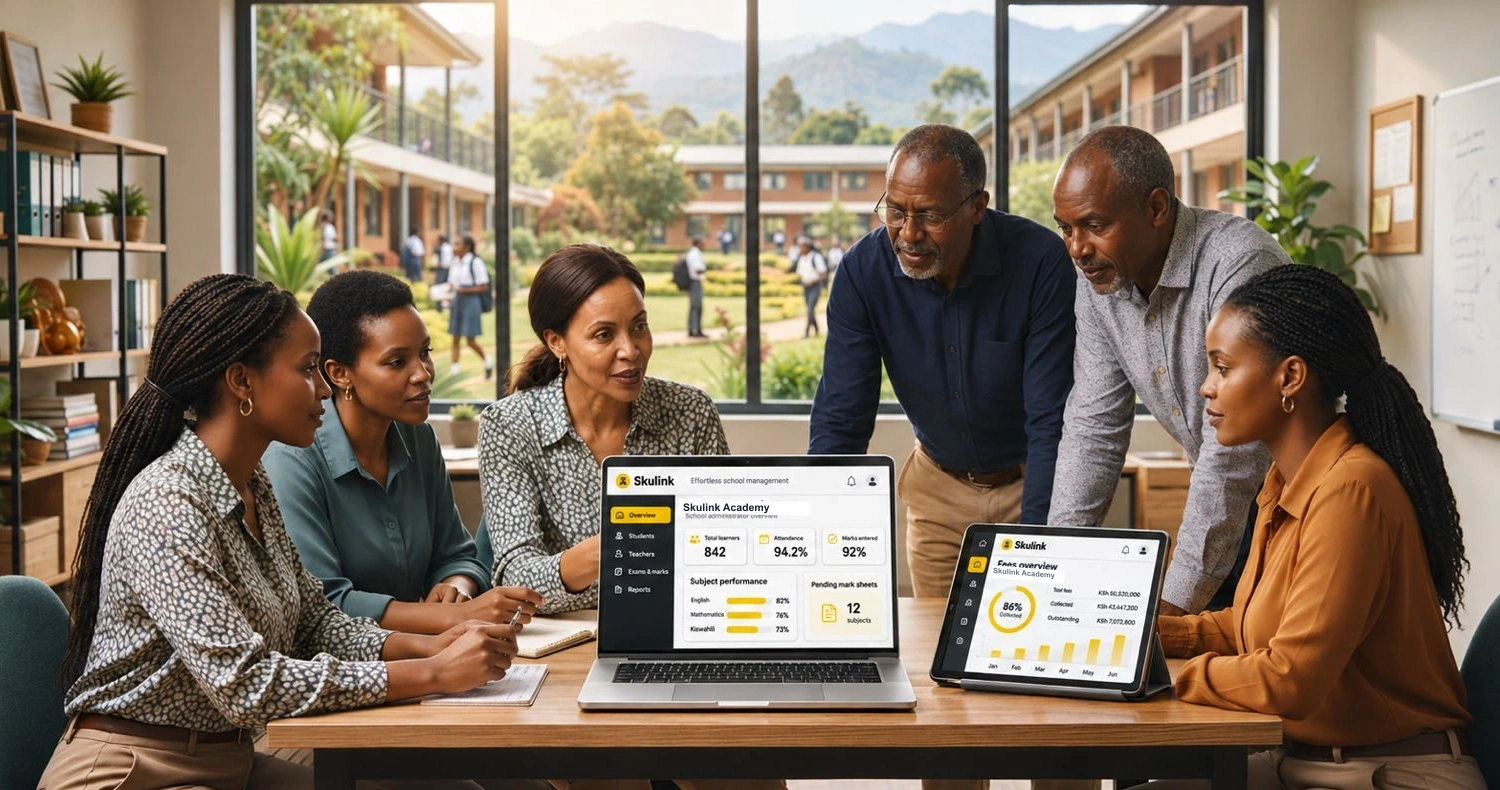
Illustrative Skulink Academy screens.
After each demonstration, record what worked, what needed a workaround and what remains unclear. Compare those notes against the school’s priorities rather than choosing by the number of listed features.
Check curriculum and reporting
Ask teachers to try an assessment from entry to report card. They should be able to review calculations, correct a mistake and prepare a report that parents can understand. Confirm that the system supports the curriculum and grading approach used by each class, including different scales if your school needs them.
Skulink supports CBC competency records by strand and sub-strand, configurable grading scales, exams and printable report cards. Results can be reviewed before publication, and parents can view published reports in the parent portal. See CBC assessment and competency reports and exams and report cards.
Trace fee payments from parent to bursar
For M-Pesa, confirm where the money goes, which payment types are supported, which transactions are matched automatically and how staff resolve exceptions. Ask the provider to show a successful payment and one with a missing or incorrect reference. Check that cash, bank and other payment methods can be recorded in the same fee account if your school uses them.
In Skulink, each school uses its own Paybill or Till, so payments go directly to the school. Parents can receive an M-Pesa prompt. Paybill payments made with a learner’s admission number can be recorded against that learner automatically. For bank payments, parents can upload proof for the bursar to confirm or reject. See school fees and M-Pesa.
The distinction between automatic matching and staff review matters. Test both routes and agree how bursars will handle exceptions before switching over.
Review records, access and parent communication
Student records should be easy for authorised staff to find and update. Ask how a system handles a changed guardian number, a learner moving class, or a staff member changing roles. Check who can correct records and whether the school can get its data back in a usable format.
Privacy needs a practical demonstration. Check that one school’s records are separated from another’s, teachers see the information their duties require, and parents can access only their own children’s records. Review account security, the activity history and the provider’s backup and recovery process. Ask who initiates a restore, what the school must provide and how the recovery steps are tested.
Skulink keeps each school’s records separate and limits access by role: teachers see their classes, and parents see their own children. Learner records can be exported in NEMIS/KEMIS formats. Parents can receive school messages and view published results, attendance and fee information through the parent portal. Read more about security, privacy and data protection and parent communication.
Plan implementation and ongoing support
Moving from paper or spreadsheets takes preparation. Assign an implementation lead, clean class lists and guardian contacts, agree who can update each record, and decide how imported data will be checked against the original. Train staff by role and practise routine tasks with sample records before relying on the system for live work.
Ask what staff should do if internet access or a device is unavailable. Find out when support is available, how urgent faults are handled, and who explains everyday tasks. Compare the full cost over time, including setup, migration, training, messaging, payment charges, support and renewals. Get the details in writing.
Where Skulink fits
Skulink brings admissions and learner records, CBC assessment, exams, report cards, fees, attendance, timetables and parent communication into one system for Kenyan schools. Its M-Pesa workflow uses each school’s own Paybill or Till, while role-based access connects administrators, teachers, support staff and parents to the parts they need.
That combination may suit a school that wants to connect academic, administrative and finance work in one place. The school should still test its own examples: import a class list, record attendance, prepare a report, trace a payment and review access for each role. Compare the steps with other systems before deciding.
Take a closer look
Skulink offers a 30-day free trial. Bring the comparison checklist to a demonstration and try the workflows with your school’s requirements. Start a free trial or talk to the Skulink team about your school’s needs.